

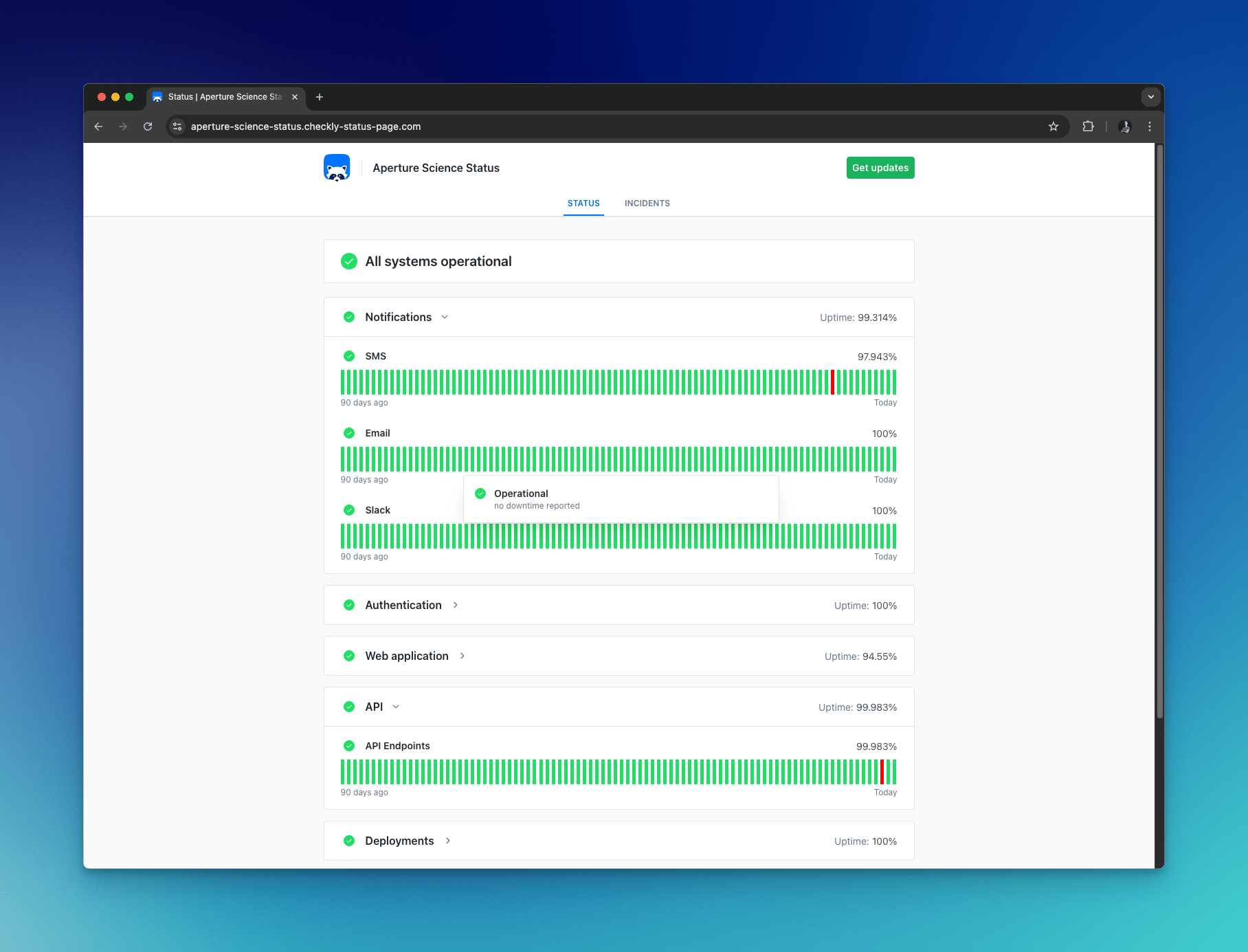
Core Status Page Components
Services
A service represents a functional piece of your application or website, such as landing page, API, support portal etc. You manage your services from the service overview page, accessible in the sidebar. When naming a service, use a name that is identifiable for your users, as this is used when sending out incident notifications. Services are what connect checks and status pages. A service can listen to multiple checks and automatically opening incidents whenever one of these checks trigger a check failure alert. See incident automation for more details. A service can be used by multiple status pages. When an incident is opened for a service, it will appear on all pages that use it. Subscribers of each of those pages will receive email notifications for the incident.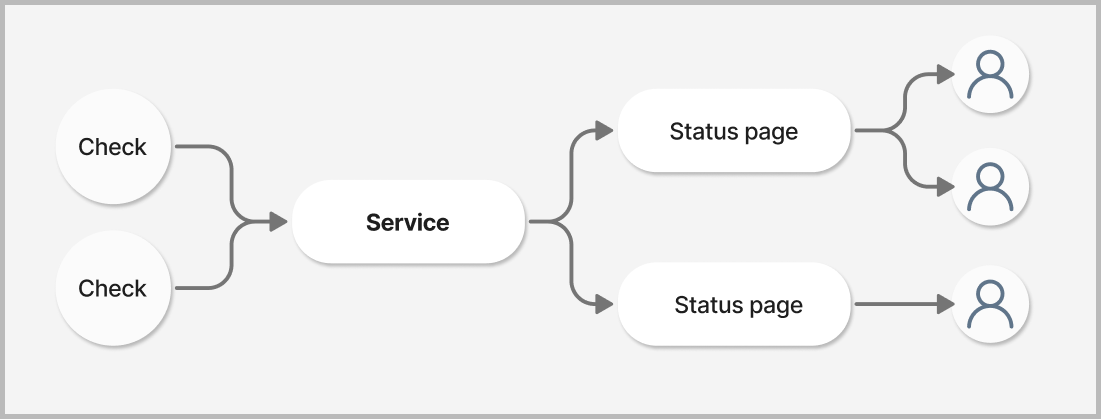
Connecting services and status pages
To display a service on a status page, go to the status page editor and open theServices dropdown on the card you want to display your service on.
Select your service from the list and save your status page. The page will now display the selected service.
You can also create new services directly from the dropdown by entering a new service name and pressing Create.
You can display the same service on multiple pages. An incident declared on that service will be shown on all status pages which contain that service.
Connecting services and checks
Use incident automation to connect a service and a check to automatically open incidents for services based on check alerts. See Incident automation for details.Status Page Best Practices
Service Organization
- User-centric services: Create services based on user-facing functionality
- Logical grouping: Group related services together for clarity
- Clear descriptions: Use terminology your users understand
- Appropriate granularity: Balance detail with simplicity
Incident Communication
- Timely updates: Provide regular updates during ongoing incidents
- Clear messaging: Use plain language to describe issues and impacts
- Proactive communication: Notify users before they notice problems
- Transparent resolution: Explain what was fixed and preventive measures
Maintenance Planning
- Advance notice: Schedule maintenance announcements with sufficient lead time
- Impact assessment: Clearly communicate which services will be affected
- Duration estimates: Provide realistic timeframes for maintenance windows
- Progress updates: Keep users informed during maintenance activities